 Library 422
How to use Library 422
Five things worth trying first. They work the same way in a browser, on a phone and in the desktop edition.
1. Read two texts side by side
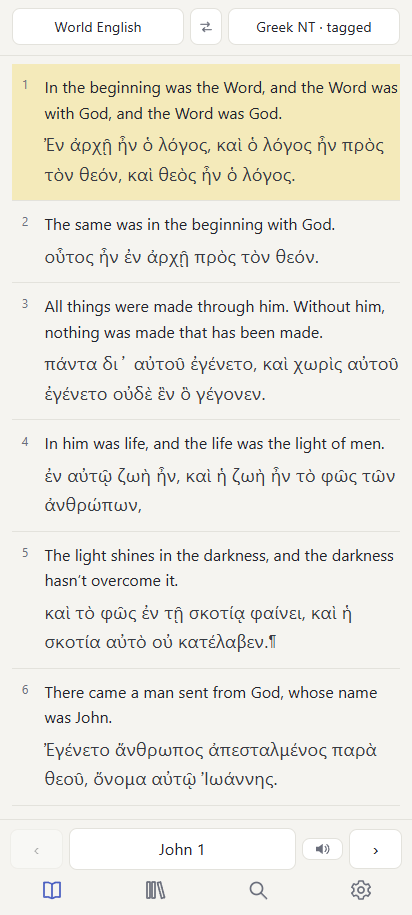
The two buttons at the top are the texts. Tap either one to swap in any Bible you have installed: an English translation next to the Greek or the Hebrew, two English translations against each other, the Septuagint beside the Hebrew it was translated from. The arrow between the buttons flips the pair around. Chapters turn with the arrows at the bottom, or ← and → if you have a keyboard, and tapping the book name opens the picker.
2. Tap a Greek or Hebrew word
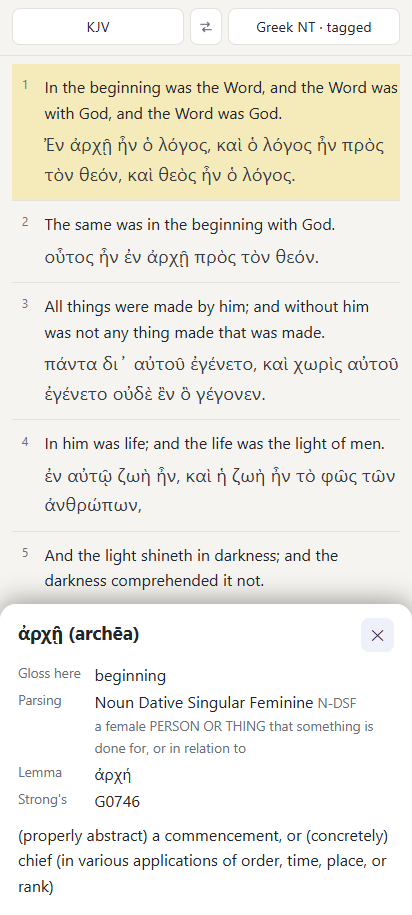
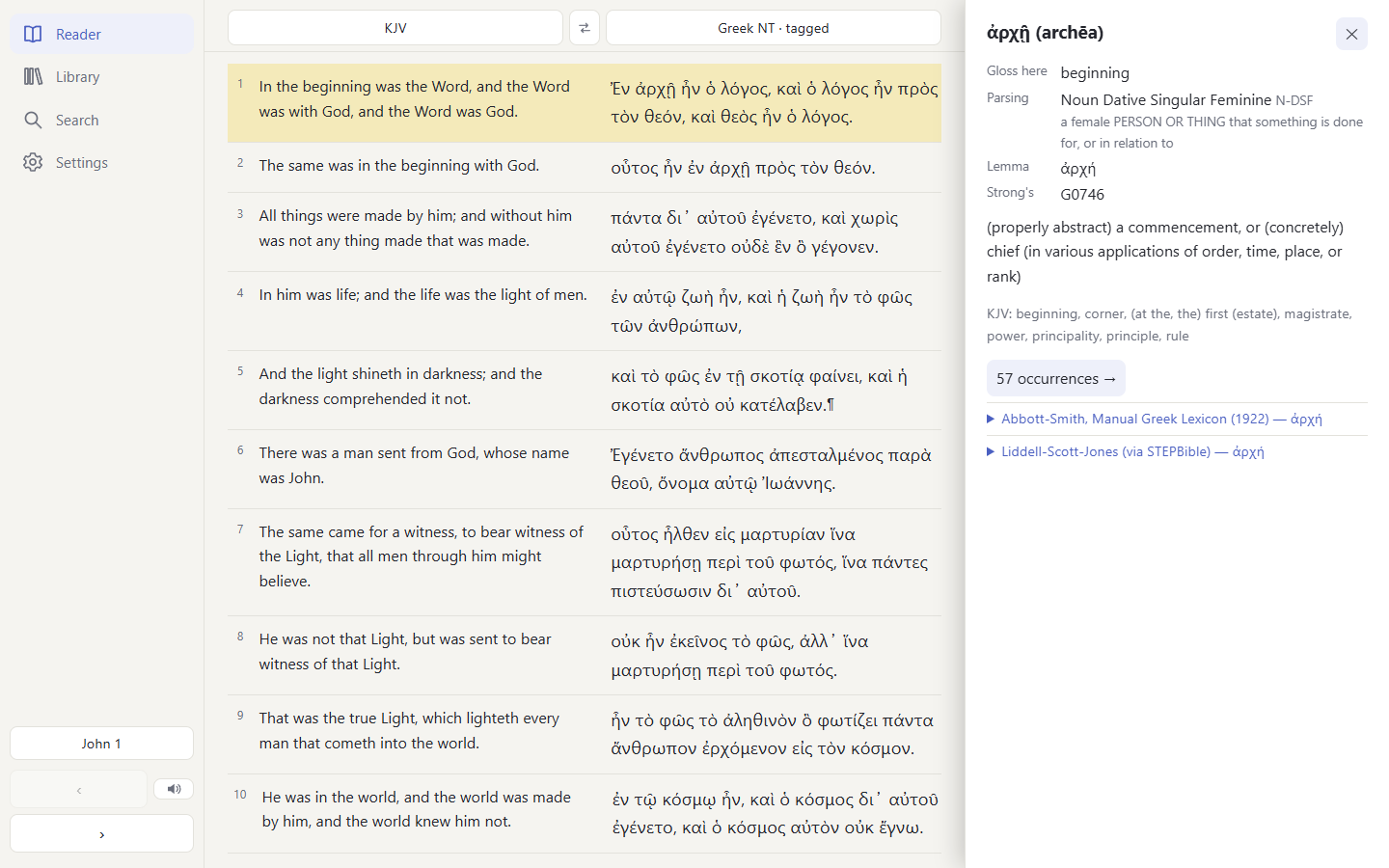
In the tagged Greek New Testament and the tagged Hebrew Old Testament, every word is live. Tap one and a panel tells you what it means here, how it is parsed (spelled out, not abbreviated), its dictionary form and Strong's number, and Strong's own definition. One more tap lists every verse in the Bible where that word appears, which is what a concordance is for. Brown-Driver-Briggs, Liddell-Scott-Jones and Abbott-Smith wait underneath, folded up until you ask.
3. Tap a verse number
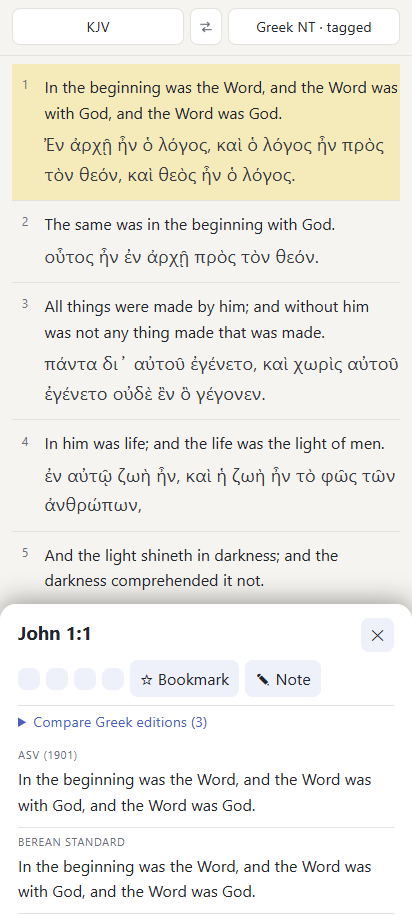
The verse panel puts the verse in front of you, first in the two texts you are reading, then in every other text you have installed. Below that, each section opens on its own: cross-references, sorted by how many readers thought the link was worth making; the people, places and events the verse names; and the spots in the Library where a Father or a commentator stops to discuss it. The pencil in the corner highlights the verse in one of four colours, bookmarks it, or takes a note. All of it stays on your device. Follow a cross-reference and a "Back to" button waits above the page controls until you take it.
4. Open the Library
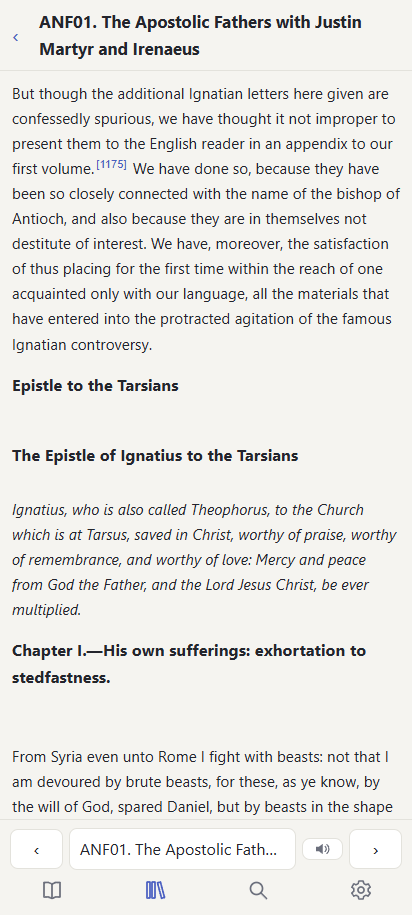
Seventy books, arranged on shelves: the Ante-Nicene, Nicene and Post-Nicene Fathers, Josephus, Philo, Aquinas, eleven verse-by-verse commentaries and the intertestamental writings. Scripture references inside a book are tappable and take you to the verse. The Victorian editors' footnotes are there too, but only when you open them. Each book downloads on its own, so a shelf always shows you what you have and what you do not.
5. Keep only what you want
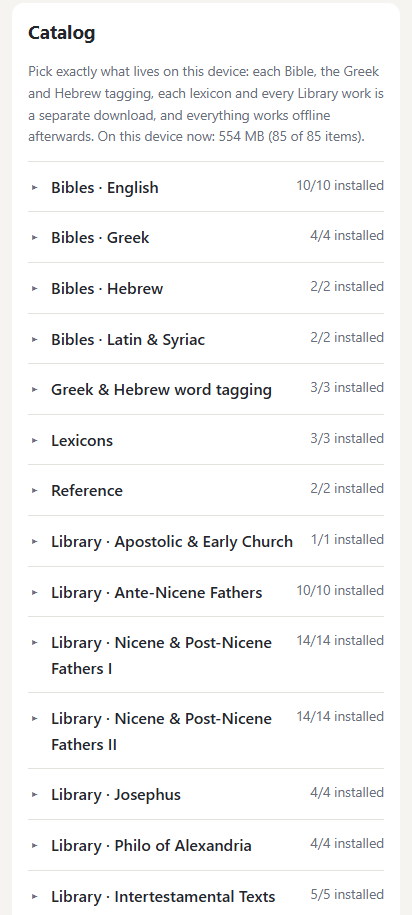
The first visit installs about 15 MB and nothing more. Settings → Catalog lists everything else, with a Download or a Remove button beside each one: every Bible text, the Greek and Hebrew tagging, the lexicons, the dictionary, the people-and-places data, and every book in the Library. If you would rather not decide item by item, there is a download-all for a shelf, or for the lot. Anything you add is yours offline from then on.
On a tablet or desktop
Give it a wide screen, whether that is a tablet turned sideways or any desktop, and the layout opens up. The tabs move to a rail down the left side, gaining labels if there is room. The two texts become real columns. Word and verse panels open in a pane on the right instead of over the top, so you can study a word and keep reading the page it came from. / jumps to search and Esc closes a panel.
Sharing a passage
Wherever you are in the app has an address, and you can send it to anyone: app.library422.org/read/john/3/16 for a verse, or app.library422.org/library/anf01/5 for a page in the Library. Whoever follows it lands on that exact spot, after the app installs its small core if it is their first time.